Yes, you can sync LinkedIn Lead Gen form submissions directly into HubSpot. The short version: connect your LinkedIn Ads account inside HubSpot’s Ads settings, authorize lead sync, make Email a required field on your LinkedIn form, map your fields to HubSpot properties, and test with a handful of submissions. New leads typically appear in HubSpot within a short time after a form fill.
Three things to confirm before you start:
- Your LinkedIn ad account roles are set correctly (ACCOUNT_MANAGER, ADMINISTRATOR, or LEAD_GEN_FORMS_MANAGER depending on what you need to do).
- The HubSpot user running the connection has Publish access to the Ads tool.
- Email is marked required on every LinkedIn Lead Gen form you plan to sync, since HubSpot uses it to create and deduplicate contacts.
One caveat worth flagging upfront: LinkedIn’s Lead Sync API access is sometimes a separate program enrollment, and private DMs cannot be synced natively into HubSpot regardless of your setup.
Key Takeaways
Syncing LinkedIn leads to HubSpot requires correct role assignments in both platforms, Email as a required form field, and active monitoring to catch token expiration before it silently breaks your sync.
| Point | Details |
|---|---|
| Confirm roles first | Assign ACCOUNT_MANAGER or ADMINISTRATOR on LinkedIn and Publish access in HubSpot before connecting. |
| Email field is required | HubSpot cannot create or deduplicate contacts without Email marked required on the LinkedIn form. |
| New leads take up to 2 hours | HubSpot receives webhook updates from LinkedIn; allow a 2-hour window before assuming sync failed. |
| Refresh forms after edits | Use HubSpot’s Refresh button in the Lead syncing tab whenever a LinkedIn form is updated. |
| The Lead Lab manages the full stack | For firms that need reliable LinkedIn-to-HubSpot delivery without internal engineering time, The Lead Lab handles setup, mapping, and ongoing monitoring. |
Table of Contents
- What you need to confirm before connecting LinkedIn to HubSpot
- How to sync LinkedIn leads to HubSpot: the step-by-step connection
- How to enable and manage LinkedIn Lead Gen form sync
- How to configure field mappings and avoid data loss
- LinkedIn Lead Sync API: what developers need to know
- How to fix the most common LinkedIn lead sync errors
- What LinkedIn won’t sync and how to work around it
- When to DIY the integration versus when to bring in help
- The Lead Lab handles LinkedIn lead delivery so your team doesn’t have to
- Sources
What you need to confirm before connecting LinkedIn to HubSpot
Getting the permissions right before you touch a single setting saves a lot of back-and-forth. Most sync failures trace back to a role that was never assigned or a HubSpot subscription that doesn’t include the feature.
HubSpot side: The user performing the connection needs Publish access to the HubSpot Ads tool. If you’re on a Starter plan, confirm that lead syncing is included for your tier before spending time on setup.
LinkedIn side: The person authorizing the OAuth connection must hold one of these roles on the LinkedIn ad account: ACCOUNT_MANAGER or ADMINISTRATOR. To read and sync Lead Gen form responses, the LinkedIn Lead Sync API also requires LEAD_GEN_FORMS_MANAGER at the organization level. If your account hasn’t been enrolled in the Lead Sync API program, you may need to request access separately before the sync will work end-to-end.
Before you begin: Make Email a required field on every LinkedIn Lead Gen form you intend to sync. HubSpot cannot reliably create or deduplicate contacts without it. Check this on the form itself inside LinkedIn Campaign Manager, not just in HubSpot’s mapping UI.
Form schema check: List every field on your LinkedIn form and decide which HubSpot contact or company property each one maps to. If a property doesn’t exist in HubSpot yet, create it now. Trying to map to a missing property mid-setup breaks the flow and forces you to restart.
Practical ownership question: Decide who will own re-authorizing the connection when OAuth tokens expire. Token expiration is one of the most common reasons sync quietly stops working weeks after a successful setup.
How to sync LinkedIn leads to HubSpot: the step-by-step connection
The HubSpot Ads connection flow is straightforward once permissions are in order. Follow this sequence exactly:
- In HubSpot, go to Settings → Marketing → Ads.
- Click Connect account and select LinkedIn.
- Sign in with the LinkedIn account that holds the correct ad-account roles.
- Grant the requested permissions when LinkedIn’s OAuth screen appears.
- Select the specific LinkedIn ad accounts you want HubSpot to pull leads from. You can connect multiple accounts, but each one needs the right roles assigned.
- Click Connect to complete the authorization.
After connecting, HubSpot will display your LinkedIn ad campaigns and begin pulling lead data. Allow some time for the first leads to appear, as there is a propagation delay for webhook updates from LinkedIn.
Auto-tracking note: HubSpot will ask whether to enable auto-tracking for LinkedIn ads. This adds UTM parameters to your ad URLs automatically. It’s useful for attribution but can conflict with manually set UTMs, so check your existing URL parameters before enabling it.
Confirming the connection worked: Go back to Settings → Marketing → Ads and look for your LinkedIn account listed under connected accounts with a green status indicator. If it shows an error or a yellow warning, the OAuth didn’t complete cleanly — disconnect and reconnect before moving forward.
How to enable and manage LinkedIn Lead Gen form sync
With the account connected, lead syncing isn’t automatically on. You need to activate it separately.
- Inside Settings → Marketing → Ads, open the Lead syncing tab.
- Find your connected LinkedIn account and toggle lead syncing on.
- If prompted to authorize a new LinkedIn Lead Sync API token, complete that step. This is the separate API program access mentioned in the prerequisites — some accounts see this prompt, others don’t, depending on their enrollment status.
- Choose your sync scope: new leads only, or new leads plus recent historical leads. HubSpot can pull up to the last 90 days of submissions depending on your configuration.
- Select which forms and ad accounts to include. You don’t have to sync every form — pick the ones tied to active campaigns.
When LinkedIn forms change (new fields added, questions reworded), HubSpot’s form sync doesn’t update automatically. Use the Refresh button inside the Lead syncing tab to pull the latest form schema. If the refresh doesn’t resolve a mismatch, re-authorizing the connection usually does.
HubSpot shows synced forms and their submission counts inside the Lead syncing UI. Check this view after enabling sync to confirm the right forms appear.
Pro Tip: Every time you edit a LinkedIn Lead Gen form for a new campaign, log the form version and the date. When troubleshooting sync gaps weeks later, knowing which form version was live during a specific date range cuts diagnostic time significantly.
How to configure field mappings and avoid data loss
Field mapping is where most data quality problems originate. Getting it right upfront means cleaner contacts and fewer deduplication headaches later.
The mapping UI lives inside the Lead syncing tab after you’ve enabled sync for a form. For each LinkedIn form field, you assign a corresponding HubSpot contact or company property. A few things to get right:
- Email is non-negotiable. HubSpot requires Email to be included and marked required on the LinkedIn form so it can create contacts and deduplicate against existing records. Map it first.
- Normalize text fields. LinkedIn’s “Company” field often comes in with inconsistent casing or abbreviations. If you’re mapping it to a HubSpot company property, consider a workflow that standardizes the value after sync.
- Phone number formatting. LinkedIn collects phone numbers in various formats. HubSpot’s phone property accepts most formats, but downstream workflows that parse phone numbers for dialing may need a cleanup step.
- Job title variations. “VP of Sales,” “Vice President, Sales,” and “VP Sales” are the same role but will look like three different values in HubSpot. A picklist property with a normalization workflow handles this better than a free-text field.
Once mapping is configured, submit a test lead through the actual LinkedIn form (LinkedIn has a preview/test submission feature in Campaign Manager). Then check HubSpot:
| What to verify | Where to look in HubSpot |
|---|---|
| Contact was created | Contacts → search by test email |
| Form submission logged | Contact record → Activity tab |
| All fields populated correctly | Contact record → Properties |
| No duplicate contact created | Contacts → search by name or company |

HubSpot logs LinkedIn Lead Gen submissions as form submissions on the contact timeline, so the Activity tab is your first stop for validating that data arrived cleanly.
For readers building persona-based routing after sync, segmenting by LinkedIn form fields mapped to HubSpot properties is a practical way to assign leads to the right rep or workflow automatically.
LinkedIn Lead Sync API: what developers need to know
If your team is building a custom integration or troubleshooting at the API level, the LinkedIn Lead Sync API has a few constraints worth understanding before you write a line of code.
The Lead Sync API exposes three primary endpoints:
- leadForms: retrieves form definitions and schema.
- leadFormResponses: retrieves individual form submissions.
- leadNotifications: delivers webhook-style push notifications when new submissions arrive.
Permissions model: Lead Sync API access may require separate program enrollment beyond standard Advertising API access. The user or service account calling the API needs ACCOUNT_MANAGER or ADMINISTRATOR on the ad account, plus LEAD_GEN_FORMS_MANAGER at the organization level. A 403 error almost always means one of these roles is missing or the program enrollment hasn’t been completed.
Webhooks vs. polling: Webhooks via leadNotifications give you near-real-time delivery but require a stable endpoint and proper token management. Polling leadFormResponses on a schedule is more fault-tolerant but introduces latency. For most marketing teams using HubSpot’s native integration, this choice is handled by HubSpot. For custom builds, webhooks are preferable when your infrastructure can support them reliably.
Token expiration: OAuth tokens expire. Build token refresh logic into any custom integration from day one. Expired tokens are the second most common cause of silent sync failures after permission gaps.
| Approach | Latency | Reliability | Complexity |
|---|---|---|---|
| Webhooks (leadNotifications) | Near real-time | High if endpoint is stable | Higher |
| Polling (leadFormResponses) | Minutes to hours | High, simpler to recover | Lower |
| HubSpot native integration | Up to 2 hours | Managed by HubSpot | Minimal |
API versioning: LinkedIn versions its Marketing APIs and deprecates older versions on a rolling schedule. Follow LinkedIn’s migration documentation and set a calendar reminder to review version compatibility at least once per quarter.
Note that LinkedIn CRM Sync and Sales Navigator writebacks are separate capabilities from Lead Gen form syncing. They require additional installation steps and matching rules. Don’t conflate the two when scoping a project.
How to fix the most common LinkedIn lead sync errors
When sync breaks, work through this diagnostic path before escalating.
Step 1: Check connection status. Go to Settings → Marketing → Ads in HubSpot. A yellow or red status on the LinkedIn account means the connection is broken. Disconnect and reconnect.
Step 2: Check lead-sync authorization. Inside the Lead syncing tab, look for any banner prompting re-authorization of the LinkedIn Lead Sync API token. This appears when the token has expired or the program enrollment lapsed.
Step 3: Verify LinkedIn roles. Log into LinkedIn Campaign Manager and confirm the user who authorized the HubSpot connection still holds ACCOUNT_MANAGER or ADMINISTRATOR on the relevant ad account. Role changes (someone left the company, permissions were restructured) silently break sync.
Step 4: Check for 403 errors. If you’re working at the API level, a 403 response points to a permission gap. Run through the full role checklist: ad-account role, organization-level LEAD_GEN_FORMS_MANAGER, and Lead Sync API program enrollment.
Step 5: Refresh form sync. If leads are connecting but specific forms aren’t appearing, use the Refresh button in the Lead syncing tab. Community troubleshooting consistently points to this as the fix for missing forms after edits.
- For duplicate contacts: confirm that Email is required on the LinkedIn form and that HubSpot’s deduplication is set to match on email address.
- For missing field data: re-check the mapping UI to confirm that every field has a corresponding HubSpot property assigned.
- For data format mismatches: run a test batch of 5–10 submissions and inspect each contact record before enabling full sync.
When to escalate: If you’ve completed all the above and sync still fails, collect the HubSpot Ads connection logs, any API response excerpts showing 4xx errors, and screenshots of the Lead syncing tab status. HubSpot Support handles the HubSpot side; LinkedIn Developer Support handles API enrollment and 403 issues on the LinkedIn side.
What LinkedIn won’t sync and how to work around it
The native HubSpot LinkedIn integration covers Lead Gen form submissions. It does not cover everything a sales rep might want in their CRM.
Private messages (DMs) cannot be synced. LinkedIn intentionally restricts access to private message content via its APIs. No native integration, including HubSpot’s, can pull DM text into a contact timeline automatically. This is a deliberate platform policy, not a technical gap that a workaround can fully close.
LinkedIn’s security posture toward user data prevents integrations from accessing private message content. Design your CRM workflows around message metadata (dates, sender, status) rather than message text. Attempting to scrape or extract private DM content violates LinkedIn’s API Terms of Service and creates legal exposure your legal and infosec teams will not thank you for.
What you can capture manually: Many teams use a standardized HubSpot note template to log key conversation points after a LinkedIn exchange. The note captures the date, a link to the LinkedIn thread, and a summary of the discussion. It’s manual, but it’s compliant and it preserves context for the next rep who touches the record.
Other data that won’t sync natively: Organic profile views, connection request status, and certain profile-only data points aren’t available through the Lead Gen form sync path. If you need this data in HubSpot, third-party connectors can bridge some of it, though they add latency and potential duplication risk. Native integrations remain preferable when they cover your use case.
When to DIY the integration versus when to bring in help
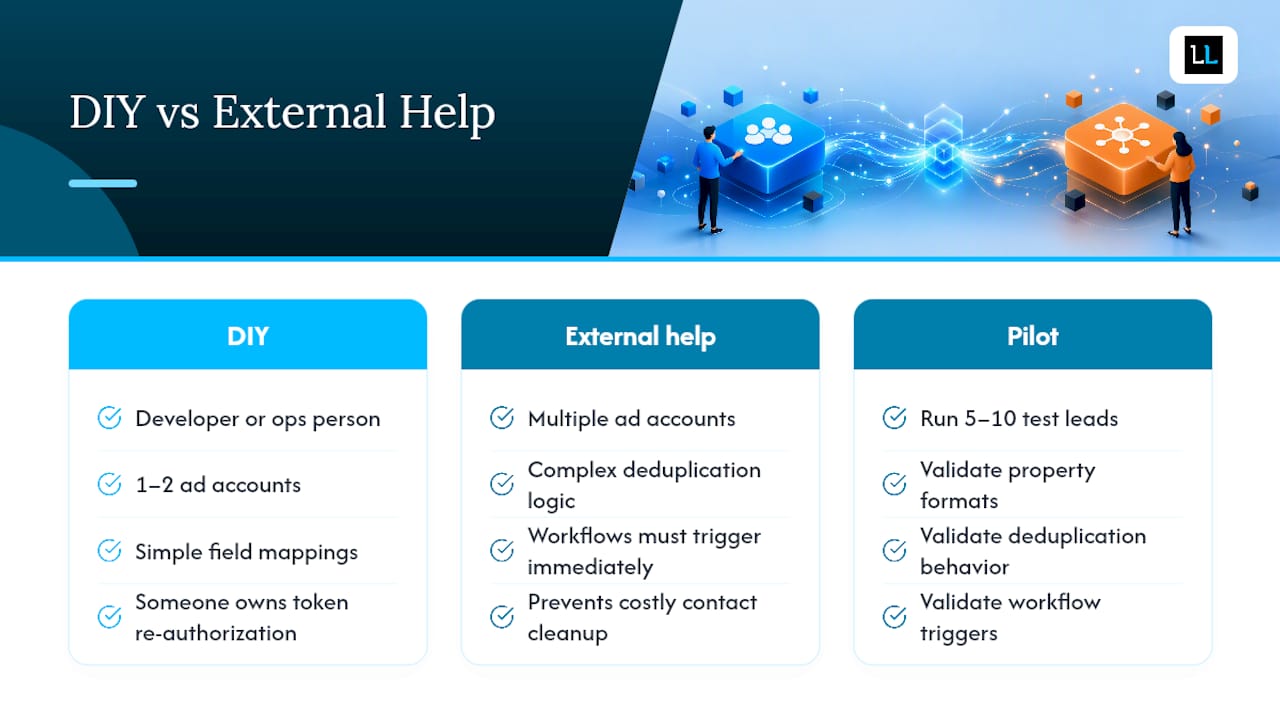
Most marketing teams with a developer or a technically confident ops person can handle the native HubSpot LinkedIn integration themselves. The UI is well-documented, the field mapping is straightforward, and the troubleshooting path is predictable.
DIY makes sense when you have one or two LinkedIn ad accounts, simple field mappings, and someone who can own token re-authorization on a recurring basis. If your forms are stable and your HubSpot property schema is already clean, setup takes a few hours, not days.
The calculus shifts when you’re managing multiple ad accounts, complex deduplication logic, or workflows that need to fire immediately on incoming leads. A misconfigured deduplication rule at scale creates a contact cleanup project that costs far more than the setup would have. The same applies when your team needs automated email sequences to trigger within minutes of a form fill — that requires workflow logic beyond the basic sync.
One thing that’s consistently underestimated: the ongoing maintenance burden. OAuth tokens expire, LinkedIn forms get edited, and ad accounts change ownership. Someone needs to own this, check it monthly, and respond when sync quietly stops. If that accountability doesn’t exist on your team, the integration will degrade.
For teams that want to generate leads on LinkedIn at scale and need reliable delivery into HubSpot without internal engineering time, a pilot approach works well. Run 5–10 test leads through the full stack before enabling broad sync. Validate property formats, deduplication behavior, and workflow triggers on that small batch. The hour spent on a pilot prevents days of cleanup.
The Lead Lab handles LinkedIn lead delivery so your team doesn’t have to
If you’ve read this far and your honest reaction is “we don’t have the bandwidth to own this,” that’s a reasonable place to land.
The Lead Lab runs done-for-you LinkedIn lead generation campaigns for professional services firms, and that includes the full technical stack: LinkedIn Lead Gen form design, HubSpot property mapping, deduplication rules, workflow setup, and a 30-day validation pilot to confirm leads are arriving cleanly before you scale spend. Marketing managers and sales directors get qualified leads delivered to their CRM without pulling an engineer off other work.
Specifically, The Lead Lab handles: connecting and authorizing LinkedIn Ads accounts in HubSpot, configuring field mappings and deduplication, building enrollment workflows that act on incoming leads, and monitoring sync health on an ongoing basis. If something breaks at 2 AM because a token expired, that’s our problem, not yours.
This is built for firms that need reliable, high-quality lead flow and don’t want to become LinkedIn API experts to get it. Book a consultation with The Lead Lab to see what a properly mapped, monitored LinkedIn-to-HubSpot setup looks like in practice.
Sources
These are the primary references for setup, API details, and troubleshooting:
- Connect your LinkedIn Ads account to HubSpot
- LinkedIn Lead Gen form SYNC in HubSpot account — HubSpot Community thread