TL;DR:
- A customized LinkedIn URL enhances your professional credibility and eases sharing, making you more discoverable.
- Proper placement and formatting of your link on resumes and in digital profiles maximize recruiter engagement and visibility.
Your LinkedIn profile URL is your professional address on the internet, and a customized version makes you easier to find, share, and remember. The default URL LinkedIn assigns looks like a string of random characters. A clean, custom URL reads as "linkedin.com/in/yourname` and signals professionalism before a recruiter even opens your profile. Learning to create a link to your LinkedIn profile takes under two minutes, yet most professionals skip it entirely. This guide covers every step: URL customization, resume formatting, sharing strategies, and how to fix common problems.
How to create your custom LinkedIn profile URL
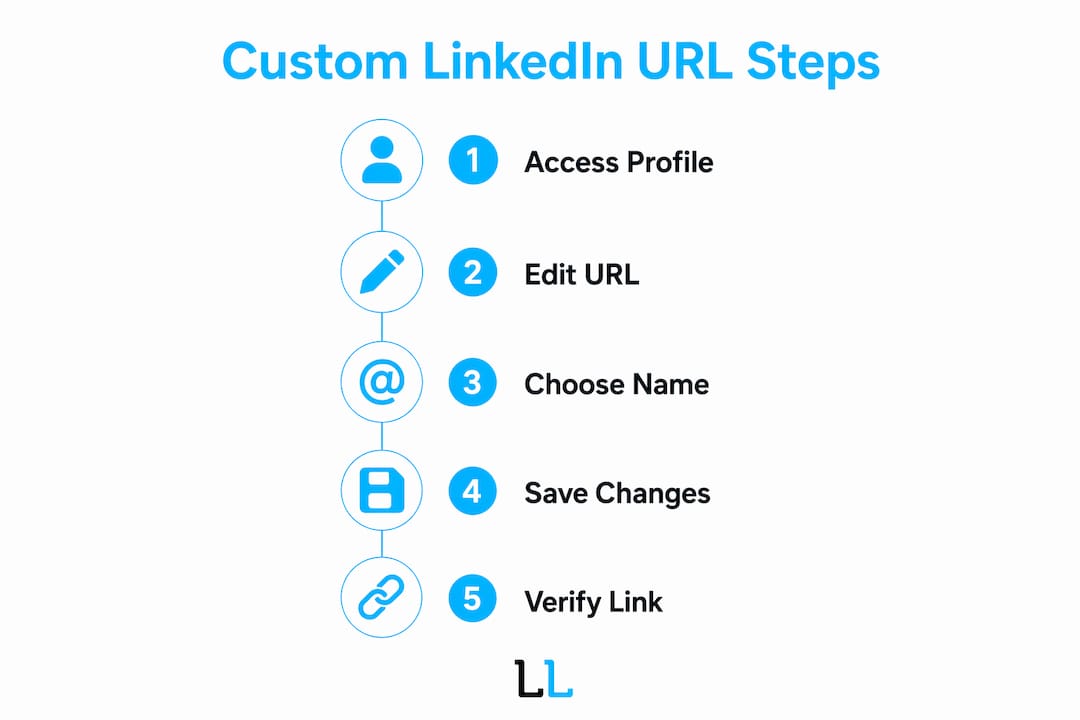
Creating a custom LinkedIn URL is the standard term for what most people call “editing your profile link.” LinkedIn calls the setting Edit public profile & URL, and it lives in a specific corner of your profile settings. You can complete this in seconds on both desktop and mobile.
Step-by-step on desktop
- Log in to LinkedIn and click your profile photo in the top navigation bar.
- Select View Profile from the dropdown.
- On your profile page, look for the Edit public profile & URL link in the upper-right corner. It appears as a small pencil icon next to a URL.
- On the Public Profile settings page, find the Edit your custom URL panel on the right side.
- Click the pencil icon next to your current URL.
- Type your preferred custom URL in the text field. LinkedIn allows 3 to 100 characters using letters, numbers, and hyphens inside the URL string only.
- Click Save. The change takes effect immediately.
Step-by-step on mobile
- Open the LinkedIn app and tap your profile photo.
- Tap View Profile, then tap the Edit icon (pencil) near the top of your profile.
- Scroll to the Contact Info section and tap the pencil icon.
- Tap your current URL under the LinkedIn section and edit it directly.
- Save the change.
Pro Tip: Use your full name as the URL whenever possible. If linkedin.com/in/janedoe is taken, try linkedin.com/in/janedoemarketing or add a middle initial like linkedin.com/in/jmartindoe. A professional URL format avoids numbers or graduation years, which undermine your brand coherence.
The URL you choose becomes permanent until you change it again. LinkedIn allows you to update it, but frequent changes can break links you have already shared. Pick a version you plan to keep.
Best practices for adding your LinkedIn link to resumes
Placement and formatting determine whether a recruiter actually clicks your LinkedIn URL. Recruiters rarely notice URLs buried in the body of a resume. The contact header is the only place that guarantees visibility.
Here is how to format and place your LinkedIn URL correctly:
- Put it on the contact line. Place your LinkedIn URL on the same line as your phone number and email address. The format reads:
Name | Phone | Email | linkedin.com/in/yourname. No separate line needed. - Drop the prefix. Use lowercase with no
https://www.prefix. Writelinkedin.com/in/yourname, not the full address. It reads cleaner and saves space. - Skip the label. You do not need to write “LinkedIn:” before the URL. The domain itself is instantly recognizable to any recruiter.
- Hyperlink for digital, plain text for print. Hyperlink your LinkedIn URL in PDF and Word versions sent by email. Remove the hyperlink formatting for printed copies to avoid distracting blue underlines.
- Check your profile before sharing. Profiles under 80% complete create doubts for recruiters. An incomplete profile linked on a resume can hurt your chances more than omitting the URL entirely.
For email signatures, add your LinkedIn URL as a hyperlinked line below your name and title. Keep the anchor text short: “LinkedIn Profile” or simply your name works well. For portfolio sites and personal websites, embed the URL as a button or text link in your bio or about section.
Pro Tip: Before you send any application, open your LinkedIn URL in a private browser window to confirm it loads correctly and shows your full public profile. A broken or restricted link tells a recruiter nothing and wastes the space.
A clean LinkedIn URL on your resume acts as a digital handshake. It signals that you manage your professional presence with care, which is exactly the impression you want to make before an interview.
How to share and promote your LinkedIn profile link
Sharing your LinkedIn URL goes well beyond the resume. Every touchpoint where a potential employer, client, or collaborator might encounter you is an opportunity to add your profile link.

Cover letters and email outreach are the most direct channels. In a cover letter, hyperlink your name or the phrase “my LinkedIn profile” in the opening paragraph. In cold email outreach, add the URL to your email signature rather than the body of the message. Embedding it in the signature keeps the email body clean while still giving recipients easy access.
LinkedIn’s own Contact Info section lets you add up to three website links categorized as Company, Blog, or Personal. This is where you add links to your portfolio, personal website, or company page. Visitors must click “Contact Info” to see these links, so they work best for people actively researching you rather than casual profile visitors.
The Featured section is more visible. LinkedIn’s Featured section sits near the top of your profile and displays pinned content prominently. Free users can pin links in the Featured section, making them visible without requiring extra clicks. This is where you pin your portfolio, a published article, or a personal website. LinkedIn Premium users get a custom call-to-action button, but the Featured section achieves similar visibility at no cost.
Third-party link aggregation tools solve the problem of LinkedIn’s link limits. Tools in this category let you create a single landing page that houses multiple destinations: your LinkedIn profile, portfolio, resume download, and contact form. These tools overcome LinkedIn’s single website field limit and give you traffic data on which links get clicked. For professionals running customized outreach campaigns, this kind of tracking data is genuinely useful for measuring engagement.
Social media bios on platforms like X (formerly Twitter), Instagram, and GitHub are natural homes for your LinkedIn URL. Keep the link current and check it quarterly to confirm it still resolves correctly.
Troubleshooting common LinkedIn URL problems
Even after you customize your URL, a few issues can surface. Here is how to handle the most common ones:
- Your preferred URL is already taken. LinkedIn URLs are first-come, first-served. If
linkedin.com/in/yournameis gone, add a professional credential or middle initial. Options likelinkedin.com/in/sarahcpasmithorlinkedin.com/in/sarahjsmithwork well. Avoid random numbers likelinkedin.com/in/sarah1987because they look auto-generated and reduce trust. - Your profile is not publicly visible. A custom URL means nothing if your profile is set to private. Go to your Public Profile settings and confirm that “Make my public profile visible to everyone” is toggled on.
- Old links are broken after a URL change. Every time you change your LinkedIn URL, any previously shared links stop working. Update your resume, email signature, portfolio, and any published bios immediately after making a change.
- Your profile looks incomplete. Before sharing your URL anywhere, audit your profile for a current photo, a headline, a summary, and at least two work experiences. An incomplete profile undercuts the credibility a clean URL builds.
Pro Tip: Set a calendar reminder every six months to check your LinkedIn URL, confirm your profile is publicly visible, and update any outdated information. A complete, current profile paired with a clean URL is the foundation of effective personal branding in 2026.
For professionals using LinkedIn as a lead generation channel, profile completeness and URL clarity directly affect how prospects perceive you. The Lead Lab’s approach to optimizing outreach campaigns consistently shows that a polished profile increases response rates before a single message is sent.
Key takeaways
A custom LinkedIn URL is the single fastest improvement you can make to your professional online presence, and it costs nothing but two minutes of your time.
| Point | Details |
|---|---|
| Customize your URL immediately | Edit ‘Public profile & URL’ to replace the default string with your name. |
| Format resumes correctly | Place the URL in the contact header, lowercase, no prefix, no label. |
| Hyperlink for digital, plain text for print | Linked PDFs improve recruiter click-through; print versions need clean plain text. |
| Keep your profile complete before sharing | Profiles under 80% complete can hurt your application more than help it. |
| Audit your URL every six months | Update all shared links whenever you change your LinkedIn URL to avoid broken paths. |
Why your LinkedIn URL is the most overlooked branding asset you own
I have reviewed hundreds of LinkedIn profiles and resumes over the years, and the URL is almost always the last thing people think about. That is backwards. The URL is the first thing a recruiter or prospect sees when they scan your contact details, and it either reinforces your credibility or quietly undermines it.
Here is what most articles will not tell you: a messy URL with random numbers does not just look unprofessional. It signals that you have not thought carefully about your digital presence, which makes recruiters wonder what else you have not thought carefully about. It is a small signal, but small signals accumulate.
The advice I give every professional I work with is this: treat your LinkedIn URL the same way you treat your email address. You would not use janedoe1987xyz@gmail.com on a resume. The same logic applies to your profile link.
One more thing worth saying plainly: customizing your URL is not a one-time task. Every time you change roles, update your name, or shift your professional focus, revisit the URL and your profile together. The link and the profile it points to need to tell the same story. A polished URL pointing to a stale profile is worse than no URL at all because it sends people somewhere that disappoints them.
For anyone serious about using LinkedIn as a business development tool rather than just a resume holder, the URL is the entry point to everything else. Get it right first, then build outward.
— Toby
Take your LinkedIn presence further with The Lead Lab
A clean LinkedIn URL is the foundation, but it is only the start of what a well-optimized LinkedIn presence can do for your business. The Lead Lab specializes in done-for-you LinkedIn outreach campaigns built for professional services firms that want qualified leads, not just profile views. From targeted prospecting and personalized message sequences to response management and campaign analytics, every campaign is built around your specific goals. If you are ready to turn your LinkedIn profile into a consistent source of meetings and new business, explore The Lead Lab’s services or review client campaign results to see what is possible.
FAQ
How do I create a link to my LinkedIn profile?
Go to your LinkedIn profile, click “Edit public profile & URL” in the upper-right corner, and edit the URL field to include your name. The process takes under two minutes and updates immediately.
Where should I put my LinkedIn URL on my resume?
Place your LinkedIn URL in the contact header on the same line as your phone number and email. Use lowercase with no https://www. prefix and no “LinkedIn:” label for the cleanest formatting.
What if my preferred LinkedIn URL is already taken?
Add a middle initial, a professional credential, or your industry to your name. For example, linkedin.com/in/janesmith becoming linkedin.com/in/janesmithcpa keeps the URL professional without resorting to random numbers.
Can I add my LinkedIn profile link to my email signature?
Yes. Add your LinkedIn URL as a hyperlinked line in your email signature below your name and title. Keep the anchor text short, such as “LinkedIn Profile,” and confirm the link resolves correctly before sending it to contacts.
How do I share multiple links on LinkedIn beyond my profile URL?
Use LinkedIn’s Contact Info section to add up to three website links, or pin additional links in the Featured section for greater visibility. Third-party link aggregation tools let you consolidate multiple destinations into one shareable URL with traffic tracking built in.